QBO vs QFX vs OFX vs CSV: Which Bank File Format Should You Use?
A plain-English comparison of the four bank file formats accounting software accepts, and which one to choose for QuickBooks, Xero and others.
Online banking often offers a confusing list of download formats: CSV, OFX, QFX, QBO, sometimes QIF. They all contain the same transactions, but your accounting software treats them very differently. Here's what each one is and which to pick.
The short answer
| You use | Best format | Also works |
|---|---|---|
| QuickBooks Online | QBO | CSV (3 or 4 columns), QFX, OFX |
| QuickBooks Desktop | QBO | — |
| Xero | OFX | CSV in Xero's layout |
| Quicken | QFX | — |
| Sage, FreeAgent, Zoho Books, GnuCash | OFX | CSV |
| Excel or Google Sheets | CSV or XLSX | — |
CSV: simple, universal, needs mapping
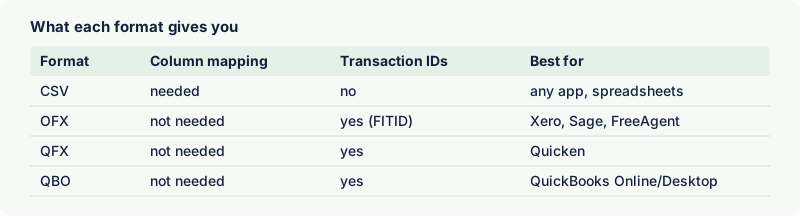
A CSV (comma-separated values) file is a plain table. Every bank offers one and every app can read one. The catch is that there's no standard for what the columns are called or how they're arranged. One bank uses Debit and Credit, another uses a single signed Amount, a third adds a Type column. So when you import a CSV, you have to tell the software which column is which, and the file often has to be cleaned up first. CSVs also don't include transaction IDs, so software can't reliably detect duplicates.
OFX: the bank-to-software standard
OFX (Open Financial Exchange) was created by Intuit, Microsoft and CheckFree as a common language for sending financial data. Instead of columns, it labels every value: <DTPOSTED> is the date, <TRNAMT> is the amount, <FITID> is a unique transaction ID. Because of those labels, apps import OFX without asking you anything, and the IDs let them skip transactions they've already seen. Version 1.0.2, an SGML-based version, is still the most widely supported.
QFX: OFX for Quicken
QFX is OFX with an extra Intuit tag that identifies the bank. Quicken uses it to check that the bank participates in its download service. Apart from that tag, the contents are the same as OFX.
QBO: OFX for QuickBooks
QBO, also called Web Connect, is the QuickBooks equivalent of QFX: an OFX file with an Intuit bank ID. QuickBooks Online imports it without column mapping, and QuickBooks Desktop uses it as its main way to import bank files. If your bank doesn't offer QBO downloads, you can convert a CSV to QBO.
QIF: the old one
QIF (Quicken Interchange Format) predates OFX. It's still offered by some banks and read by some apps, but it has no transaction IDs and ambiguous date formats. Choose OFX instead when you can.
Excel (XLSX)
Many banks now offer an Excel download. It's great for analysis, but accounting apps generally don't import XLSX bank statements directly. Convert it to the format your app needs — our converters read XLSX files directly.
Which should you download?
- If your bank offers the exact format your software prefers (QBO for QuickBooks, OFX for Xero), use it.
- If not, download CSV or Excel — it's always available and contains everything you need.
- Convert it with a tool that runs locally, check the totals, and import.
