QuickBooks Bank Upload Errors: What They Mean and How to Fix Them
Fixes for the most common QuickBooks Online and Desktop bank file errors: wrong date format, zero amounts, duplicates, unsupported bank and file size.
When a bank file upload fails, QuickBooks rarely tells you exactly why. The good news is that almost every failure comes from a short list of causes. Find the symptom below, apply the fix, and upload again.
"The file isn't in the right format" or the upload just fails
This is the catch-all error. Check these in order:
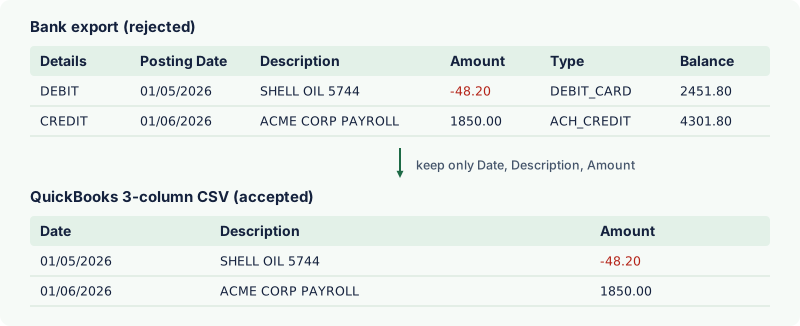
- Extra rows above the headings. Many banks put an account summary, title or blank rows at the top of the CSV. QuickBooks expects the column headings on the first line. Delete everything above them.
- Extra columns. QuickBooks Online handles only Date, Description and Amount (or Date, Description, Credit, Debit). Remove balance, account number, type and category columns.
- Wrong file type. A file saved as .xlsx and renamed to .csv is still an Excel file. Use Save As → CSV (Comma delimited).
- Mac CSV line endings. If you saved the file on a Mac, choose Windows Comma Separated when it's offered.
- Special characters. Unusual symbols in descriptions can break older importers. Plain letters, numbers and basic punctuation are safest.
A converter removes all five causes in one step.
Dates are wrong, or some rows have no date
QuickBooks reads dates according to the format you choose on the mapping screen. If your file has 03/02/2026 and you choose MM/DD/YYYY, QuickBooks reads 2 March as 3 February — and dates like 25/02/2026 become invalid and are skipped.
- Make sure every row uses the same date format.
- Remove day names and times (
TUE 20/11/2026or2026-11-20 14:03). - Choose the matching date format on the mapping screen.
Amounts are positive when they should be negative (or the reverse)
In a 3-column file, money out must be negative. Some banks export everything as positive numbers and add a separate DEBIT/CREDIT column; others, like many credit card issuers, export charges as positive. Fix it by:
- choosing the correct sign option on QuickBooks' mapping screen, or
- converting to the 4-column layout, where money in and money out sit in separate columns, or
- flipping the signs before you import (our converter has a Swap money in and money out option).
Also check that a credit card file is uploaded to a credit card account in QuickBooks, not a bank account.
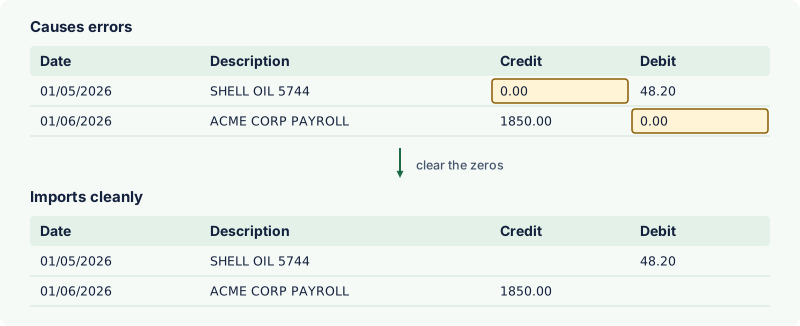
Zeros in the Credit or Debit columns
In the 4-column layout, each row should have a value in either Credit or Debit, with the other cell empty. A 0 or 0.00 in the empty cell can make QuickBooks reject the row or import it twice. Clear those cells — don't fill them with zeros.
Duplicate transactions after importing
CSV files don't carry transaction IDs, so QuickBooks can't always tell that a transaction was already imported. To avoid duplicates:
- start each download the day after the last transaction already in QuickBooks;
- use a QBO (Web Connect) file, which includes a unique ID for every transaction — see our CSV to QBO converter;
- if duplicates are already in For review, exclude them there rather than deleting them after they've been added.
The file is too large
QuickBooks Online limits the size of uploaded bank files. A year of transactions for a busy account can go over it. Download shorter periods (a month or a quarter) and upload them one at a time.
QuickBooks Desktop: "bank not supported" or "account not found"
QuickBooks Desktop imports bank files through Web Connect (.qbo). It checks two things in the file: the Intuit bank ID and the account number.
- If it says the bank isn't supported, the bank ID in the file isn't one your QuickBooks version accepts. When you create the QBO file, enter your own bank's Intuit bank ID.
- When it asks which account to use, choose Use an existing QuickBooks account and pick the right one. QuickBooks remembers the link for next time.
Still stuck?
Open the CSV in a plain text editor such as Notepad or TextEdit. You'll see exactly what QuickBooks sees — hidden title rows, odd quotes, semicolons instead of commas. If the first line isn't Date,Description,Amount (or the 4-column version), that's the problem.