Bank Statement CSV Formats by Country: US, UK, Canada and Australia
Why a bank export that imports perfectly for one business fails for another — and what to change for banks in the United States, United Kingdom, Canada, Australia and New Zealand.
QuickBooks and Xero are used all over the English-speaking world, but banks in each country export transactions a little differently. The three things that cause most failed imports are the date order, the amount columns, and the sign (whether money out is negative). Get those right and almost any bank file will import.
Quick reference
| Country | Usual date order | Currency | Account names you'll see |
|---|---|---|---|
| United States | MM/DD/YYYY | USD ($) | Checking, savings, credit card |
| United Kingdom | DD/MM/YYYY | GBP (£) | Current account, savings, credit card |
| Canada | Varies: MM/DD/YYYY, DD/MM/YYYY or YYYY-MM-DD | CAD ($) | Chequing, savings, credit card |
| Australia | DD/MM/YYYY | AUD ($) | Transaction / everyday account, savings, credit card |
| New Zealand | DD/MM/YYYY | NZD ($) | Cheque / everyday account, savings, credit card |
Why the date order matters so much
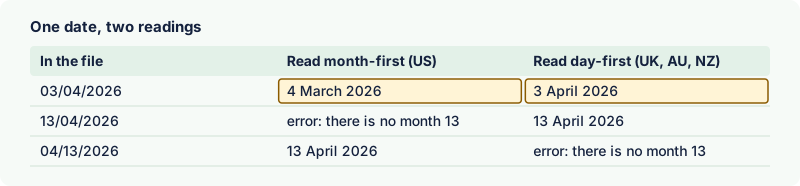
A date like 03/04/2026 is 4 March in the US and 3 April in the UK and Australia. If your accounting software reads it the wrong way round, one of two things happens: the import fails on any day above 12 (there is no 13th month), or — worse — it succeeds and puts transactions in the wrong month. Always check a few dates after day 12 in the preview before you import.
- QuickBooks Online asks you to pick the date format when you map the columns of a CSV. Choose the one that matches the file, not your own country.
- Xero reads CSV dates in the format of your organisation's region, so a UK, Australian or New Zealand organisation expects DD/MM/YYYY and a US organisation expects MM/DD/YYYY.
- QBO and OFX files store dates as
YYYYMMDD, so the problem disappears. If dates keep going wrong, converting to QBO or OFX is the simplest fix.
United States
US banks such as Chase, Bank of America, Wells Fargo, Citi and Capital One export dates as MM/DD/YYYY. Most give one signed Amount column, but some split it into Debit and Credit, and many add extra columns such as Type, Check or Slip # and Balance. Many US banks also offer QBO (Web Connect) downloads directly — use them when they're available.
Watch out for credit card exports: some card issuers show purchases as positive numbers and payments as negative, which is the opposite of what QuickBooks expects for a credit card account. If every purchase shows up as money in, flip the sign before importing.
United Kingdom
UK banks — Barclays, HSBC, Lloyds, NatWest, Santander, Monzo, Starling and others — use DD/MM/YYYY dates and amounts in pounds. Common layouts include:
- Separate Paid in and Paid out (or Money in / Money out) columns instead of one amount.
- Text dates such as
05 Jan 2026. - Account details or a balance summary above the transaction rows.
- Files saved in an older Windows text encoding, which makes the £ sign appear as a strange character when opened elsewhere.
QuickBooks Online UK and Xero both accept a 3-column CSV (Date, Description, Amount) once those quirks are cleaned up. Our CSV to Xero converter and QuickBooks converter handle them automatically.
Canada
Canada is the trickiest country for dates, because banks don't agree: depending on the bank and the download option, you may get MM/DD/YYYY, DD/MM/YYYY or ISO YYYY-MM-DD. Check a date after the 12th of the month to be sure which one you have. RBC, TD, Scotiabank, BMO and CIBC all offer CSV downloads, and several also offer QBO for QuickBooks.
Some Canadian exports have no header row, or split withdrawals and deposits into two columns. Exports from French-language online banking can use a comma as the decimal separator and French column names, so check the amounts in the preview carefully.
Australia
Australian banks — CommBank, Westpac, NAB, ANZ and others — use DD/MM/YYYY dates and amounts in AUD. Some CSV exports, including CommBank's, have no header row: the file starts straight away with transaction lines in a fixed order such as date, amount, description and balance. Software that expects a header row will then treat your first transaction as column names and skip it, so check that the first transaction made it into the preview.
Xero is the most popular choice in Australia, and an OFX file is the most reliable way to import into it: no column mapping, no date confusion, and Xero can use the transaction IDs to avoid duplicates. Our CSV to Xero converter can produce either a Xero CSV or an OFX file.
New Zealand
New Zealand banks such as ANZ, ASB, BNZ, Westpac and Kiwibank also use DD/MM/YYYY dates. Exports often include extra columns like Particulars, Code and Reference — Xero has matching fields, and keeping them makes bank rules match more reliably.
A checklist that works in every country
- Download the transactions as CSV, Excel, OFX or QBO from online banking.
- Open the file in a converter or text editor and find a date after the 12th — that tells you the date order.
- Make sure money out is negative and money in is positive (for credit cards, purchases are negative).
- Make sure there is exactly one header row, or none if your software expects none.
- Compare the total in, total out and number of transactions with your statement.
- When in doubt, import as QBO (QuickBooks) or OFX (Xero and others) — they have no date ambiguity.

For the import steps themselves, see importing into QuickBooks Online or importing into Xero.