How to Fix Duplicate Transactions After a Bank Import (QuickBooks and Xero)
Why bank imports create duplicate transactions in QuickBooks Online and Xero, how to find and remove them safely, and how to stop it happening again.
Duplicate transactions are the most common side effect of importing bank files. They inflate your expenses, double your income, and make reconciliation impossible. The good news is that they almost always come from a handful of predictable causes, and they can be removed cleanly if you work in the right order.
Why duplicates happen
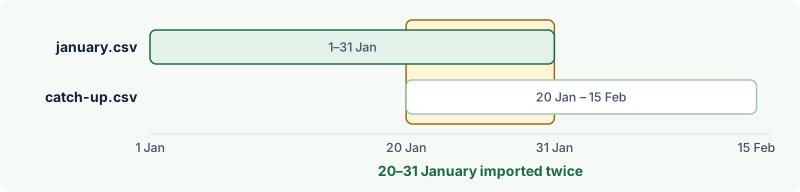
- Overlapping date ranges. You download 1–31 January, import it, then later download 15 January–15 February. The second half of January is now in twice.
- A bank feed and a file for the same period. The feed reconnects and pulls in transactions you already uploaded from a CSV.
- Adding instead of matching. A payment you entered by hand is added again from the import instead of being matched to it.
- Re-importing a corrected file. You fix a problem in the CSV and upload it again without removing the first attempt.
CSV files make duplicates more likely because they carry no transaction IDs. OFX and QBO files include a unique ID for each transaction (the FITID), which QuickBooks and Xero can use to recognise lines they've already imported. That's one reason to prefer QBO or OFX when you can.
Step 1: Find the duplicates
Before deleting anything, confirm what's duplicated and where it came from. Pick a short period — one month — and compare the bank statement with the account register (QuickBooks) or the account transactions (Xero). Duplicates usually show up as pairs with the same date, amount and description.
A quick way to do this for a long period is to export the register to Excel, sort by amount and then date, and add a helper column:
=IF(AND(B2=B1, C2=C1, D2=D1), "possible duplicate", "")
where B is the date, C the description and D the amount. Remember that some genuine transactions repeat — two coffees at the same shop on the same day are not duplicates. Always check against the statement.
Fixing duplicates in QuickBooks Online
Duplicates still in For review
If the duplicates haven't been added yet, this is easy. In Transactions → Bank transactions → For review, select the duplicate lines and choose Exclude. Excluded transactions are kept out of your books but can be restored later if you change your mind.
Duplicates already added
- Go to the Categorized (or Reviewed) tab of Bank transactions.
- Find the duplicate lines and choose Undo. They return to For review.
- Now select them in For review and choose Exclude.
Undoing first is cleaner than deleting the transaction from the register, because QuickBooks keeps track of what was downloaded and won't try to re-match it later.
Duplicates in a reconciled period
If a duplicate is in a period you've already reconciled, removing it will change that reconciliation's beginning balance. Fix it, then re-check the reconciliation for that month. If you work with an accountant, tell them before changing reconciled periods.
Fixing duplicates in Xero
Xero keeps imported statement lines separate from the account transactions you create when reconciling. Duplicates can exist in either place, and you fix them differently.
Duplicate statement lines (not yet reconciled)
- Open the bank account and go to the Bank statements view (from Manage account).
- Find the import that caused the duplicates. You can delete individual statement lines, or remove an entire imported statement if the whole file was a mistake.
- Return to the reconcile screen and check the duplicates have gone.
Duplicates that were reconciled
If a duplicate statement line was reconciled — so it created a transaction — use Remove & Redo on that transaction first. This unreconciles it and returns the statement line to the reconcile screen. Then delete the duplicate statement line. Deleting only the transaction leaves the statement line behind; deleting only the statement line can leave the transaction in your accounts.

A note on QuickBooks Desktop
QuickBooks Desktop imports bank files as QBO (Web Connect) and uses each transaction's ID to skip lines it has already downloaded, so importing the same QBO file twice usually does nothing the second time. Duplicates in Desktop tend to come from two different files covering the same dates — for example, a QBO file made from a CSV and a later file downloaded directly from the bank, which use different IDs for the same transactions. To remove one, open the account register, select the duplicate transaction and delete it from the Edit menu. If it was already reconciled, re-check that reconciliation afterwards.
When a bank feed and a file overlap
A common sequence: the bank feed breaks, you upload CSV files to keep up to date, then the feed is reconnected. When it reconnects, it may fetch transactions from a date before your last file import — sometimes going back several weeks. Those come in as new lines alongside the ones you already uploaded.
When you reconnect a feed, check the date it starts from. In both QuickBooks Online and Xero, transactions the feed brings in for a period you already covered with files should be excluded or deleted before they're reconciled. If you spot them in For review (QuickBooks) or the reconcile screen (Xero) with an amount and date that exactly match an existing transaction, that's almost certainly the overlap.
Checking a whole year quickly
For a long period, a pivot table finds duplicate candidates faster than scrolling. Export the account transactions to Excel, then:
- Insert a pivot table with Date and Amount as rows and Count of Description as values.
- Filter the count to show values greater than 1.
- Check each remaining pair against the bank statement. Pairs that appear on the statement once are duplicates; pairs that appear twice are genuine.
Sort the results by month. If they cluster in one fortnight, you've found an overlapping import; if they're spread evenly, look for transactions that were both entered by hand and imported.
An example of an overlapping import
Two files were imported for the same account:
| File | Date range | Rows |
|---|---|---|
| january.csv | 01/01/2026 – 31/01/2026 | 42 |
| catch-up.csv | 20/01/2026 – 15/02/2026 | 37 |
The overlap is 20–31 January. Every transaction in catch-up.csv dated in that range is a duplicate. Remove those (and only those) from the second import, and the account will reconcile. Had the second file started on 1 February, there would have been nothing to fix.
How to stop duplicates happening again
- Start each download the day after the last imported transaction. Note the last date you imported for each account.
- Prefer QBO or OFX. Their transaction IDs let QuickBooks and Xero recognise repeat lines.
- Don't run a feed and file imports for the same dates. If you reconnect a bank feed, check which start date it uses.
- Match, don't add. If you enter payments manually, match the imported line to them.
- Reconcile every month. A duplicate is easy to spot in a one-month reconciliation and hard to find a year later.
Checklist
- Confirmed each duplicate against the bank statement, not just the register.
- Identified the cause: overlap, feed plus file, added instead of matched, or re-import.
- QuickBooks: excluded from For review, or undone and then excluded.
- Xero: used Remove & Redo before deleting a reconciled duplicate's statement line.
- Re-checked the reconciliation for every month you changed.
- Recorded the last imported date for each account.